Add your team
Put your crew and office people in Dispatch so they can sign in.
Nobody makes their own account. You add each person with their email, and Dispatch emails them how to get in. There are no passwords. They sign in with a 6-digit code we email them.
Add someone
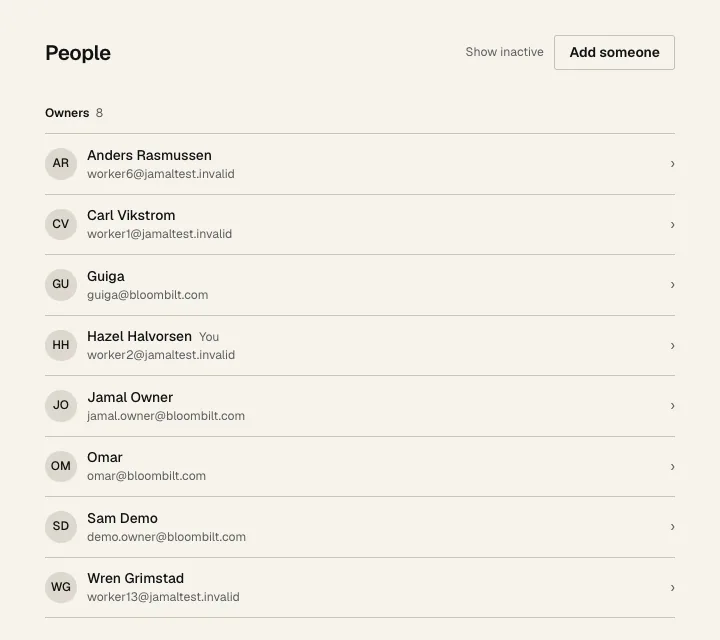
- On the website, open the People menu, then People.
- 1 Click Add someone.
- Type their email and name. Pick a role: Crew for the field, Dispatcher for office work, Owner for everything including who has access.
- Leave Email them how to sign in checked and click Add. They get an email with the app links and the steps.
- 2 People show up grouped by role. Owners first, then Dispatchers, then Crew.
- Can't sign in yet next to someone means their sign-in isn't set up. Open them and click Set up sign-in. When several people are waiting, Set up sign-in for all at the top does them in one go.
- Show inactive, next to Add someone, shows people you've deactivated.
Change someone's role, color or access
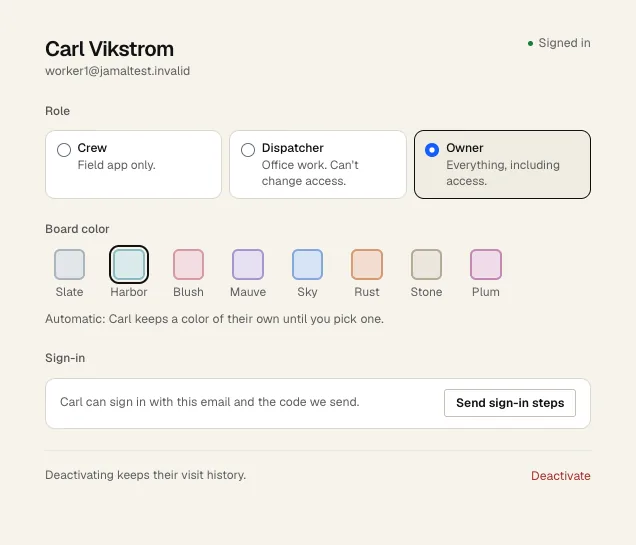
- Click a person on the People page.
- 1 Click a role card to change their role. Only an owner can do this.
- 2 Board color is the color of their cards and map pins on the board. Pick one, or leave it on automatic.
- 3 Send sign-in steps emails them the how-to again. Use it when someone says they never got it.
- 4 Deactivate takes them off the board and stops them signing in. Their past visits stay.