Book a job
Quick one-offs from the board, and recurring work with prices.
Quick one-off from the board
Go to the board, switch to People, pick the day and click New job.
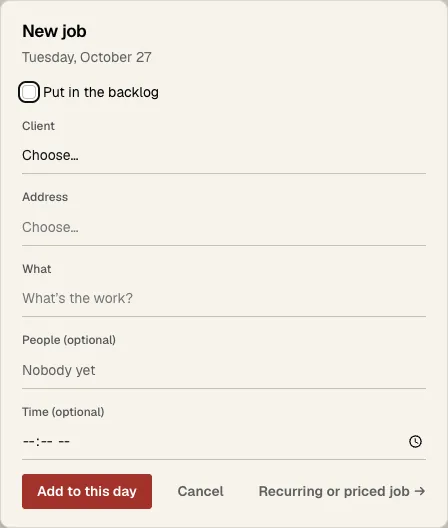
- 1 Check this to put it in the backlog with no day.
- 2 Pick the client.
- 3 Pick the address.
- 4 Say what the work is, like "Mow, trim and blow".
- 5 Pick who's doing it. You can leave it empty and assign later.
- 6 Set a time if it has to be at a time.
- 7 Click Add to this day.
- 8 Need it to repeat, or need prices? Click this for the full form.
Recurring or priced job
Click Jobs, then New job. Or click Book a job on a client.
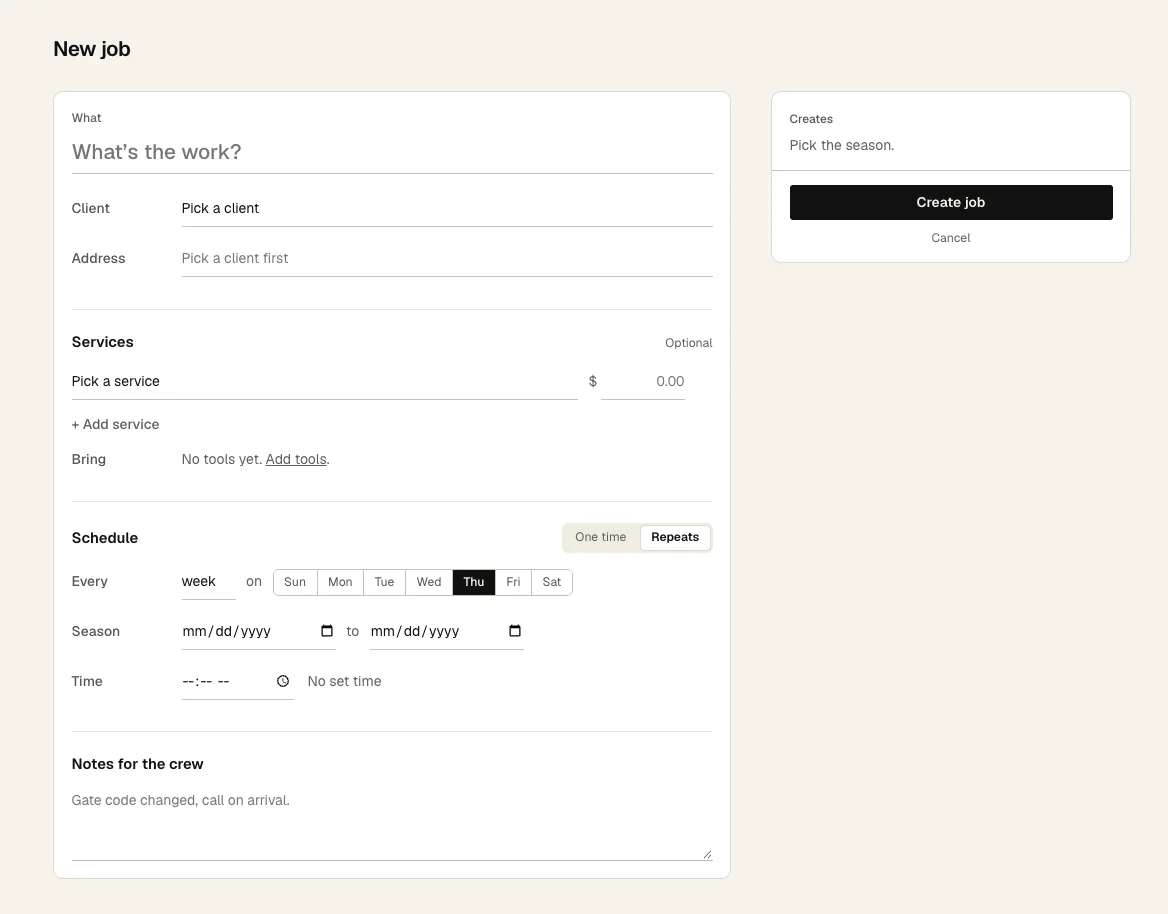
- 1 What: name the work.
- 2 Pick the client.
- 3 Pick the address.
- 4 + Add service for each service. The price fills in from your price list. Change it for this client if you need to.
- 5 Bring fills in from the services. Add or remove tools for this job.
- 6 One time or Repeats.
- 7 For repeats: every week, 2 weeks or month, and which days.
- 8 Season: the first and last date. It stops on its own after.
- 9 A set time, if there is one.
- 10 Notes for the crew show on every visit.
- 11 The box on the right shows how many visits this makes and the first dates. Check it, then click Create job.
Change or stop a job
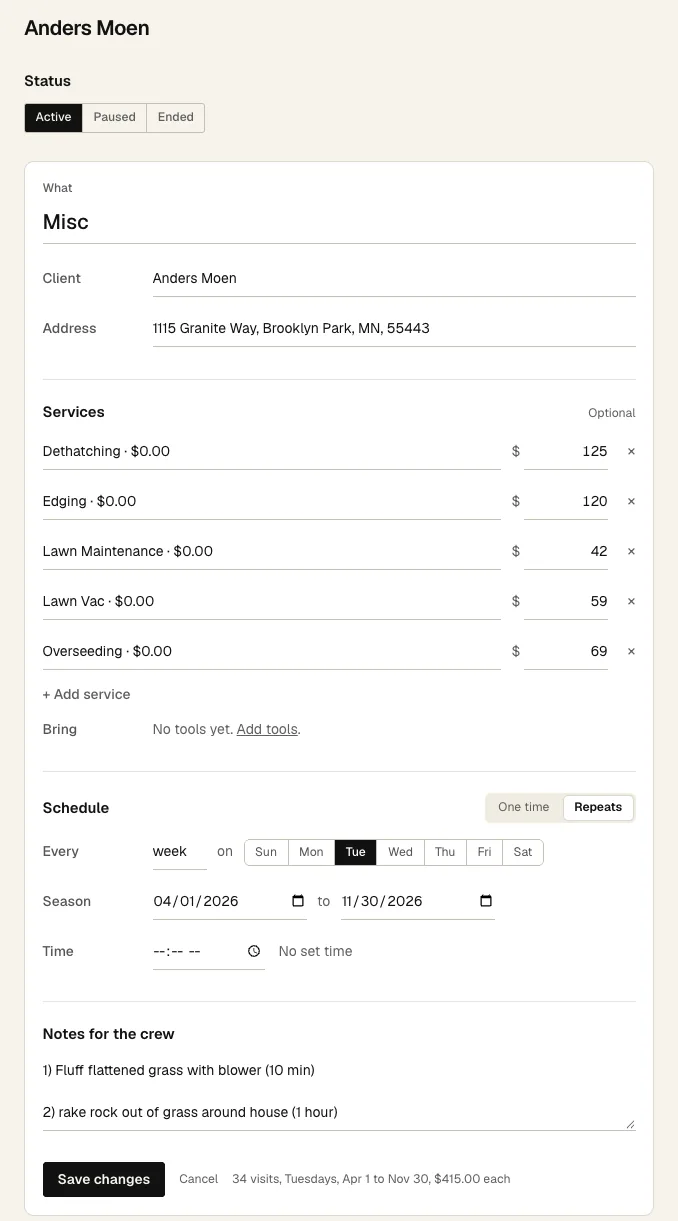
- 1 Status: Active makes visits. Paused makes no new ones. Ended means the season's over.
- 2 Change services or prices. New prices apply from here on.
- 3 Change the schedule. Then click Save changes at the bottom.
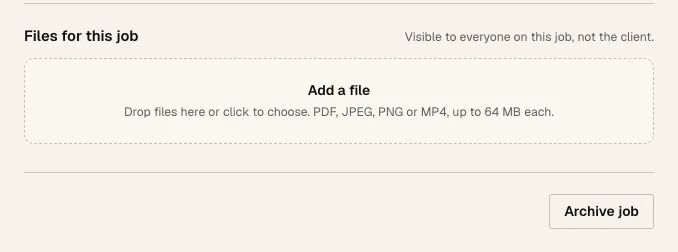
- 1 Files for this job: site walk videos, designs, plans. Everyone on the job sees them. The client never does.
- 2 Click Add a file or drop files on it. PDF, photos or MP4, up to 64 MB.
- 3 Archive job takes its future stops off the board. Finished work and invoices stay. Restore brings it back.
Customer requests
When a customer asks the crew for more work, the crew sends it from the stop with Customer request. The office gets a notification, it shows in Activity on Home, and it's listed under Customer requests on that job's page.
- If Front Desk is connected, each request also goes to Front Desk as a lead. The job page says Sent to Front Desk, or Not sent to Front Desk with Send again.
- Requests are a heads-up, not a booking. To do the work, book it like any other job.
Find a job
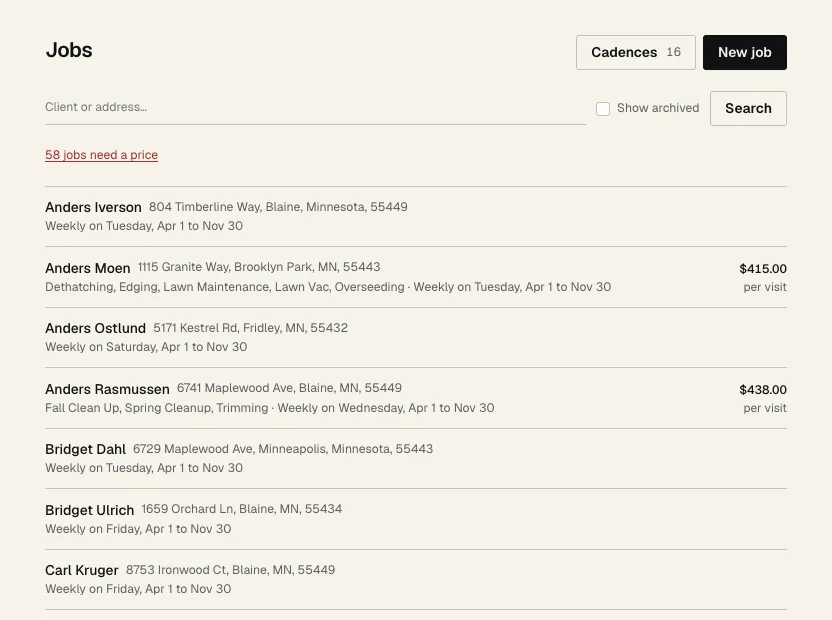
- Search by client or address. New job at the top books one.
- 1 Jobs need a price lists the ones with no price yet. You can't invoice them until they have one. It only shows when there are some.
- 2 Cadences only shows for jobs you brought over from Jobber with no schedule. Set how often each one runs.