Plan and move work on the board
Days, People and Map views, dragging stops, and the stop details.
Two words to know. A job is the agreement, like "mow every Tuesday". A stop (also called a visit) is one trip on one day. The board shows stops.
Days view: the week
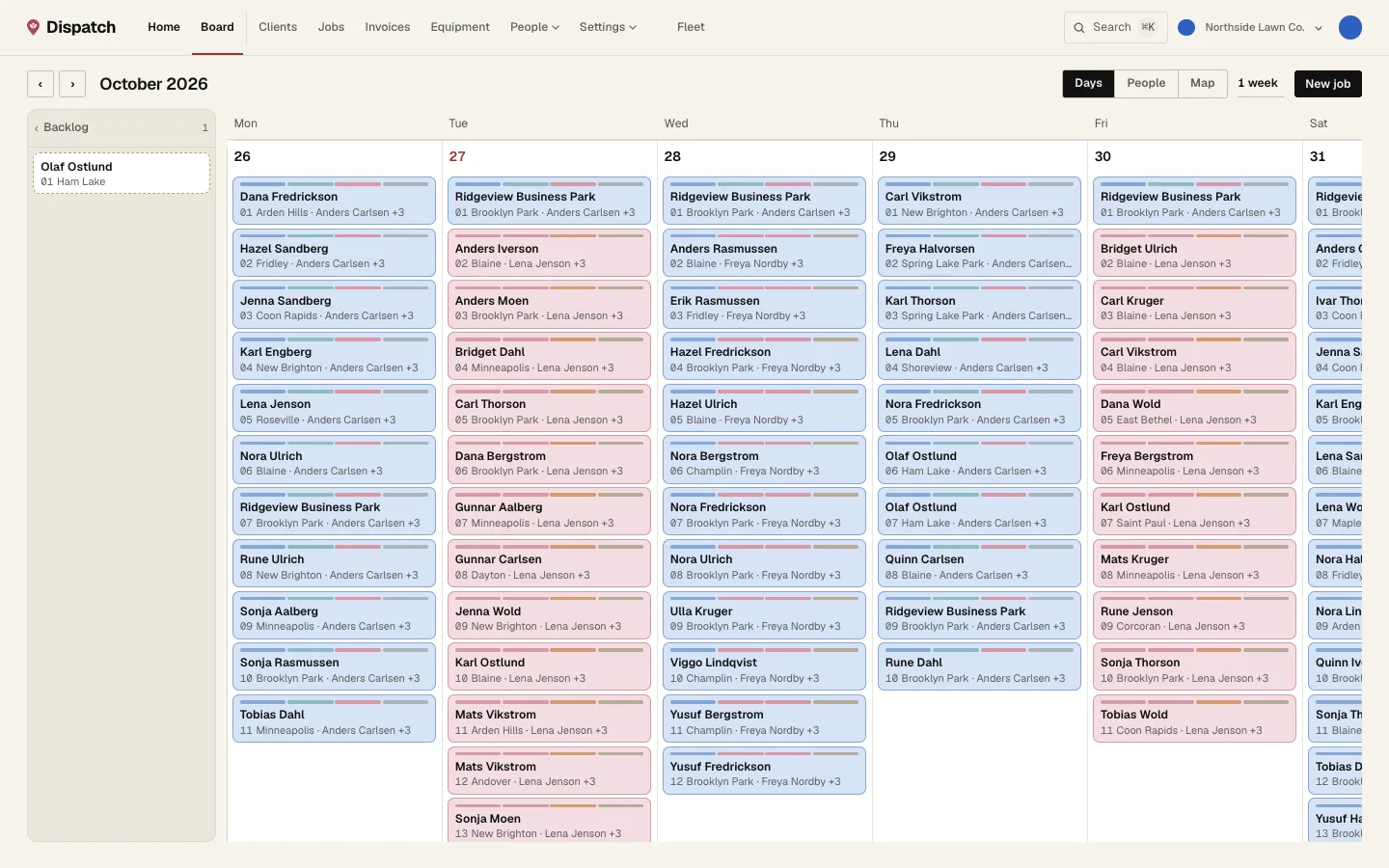
- 1 Switch between Days, People and Map. Next to it, pick how much to see: 1 day up to 4 weeks.
- New job at the top right books work.
- 2 Backlog holds stops with no day yet. Drag one onto a day to schedule it. Click the header to fold it away.
- 3 Each card is a stop: client, stop number, town and who's on it. Drag it up or down to change the order. Drag it to another day to move it. The same people stay on it. A finished stop turns grey.
People view: who does what today
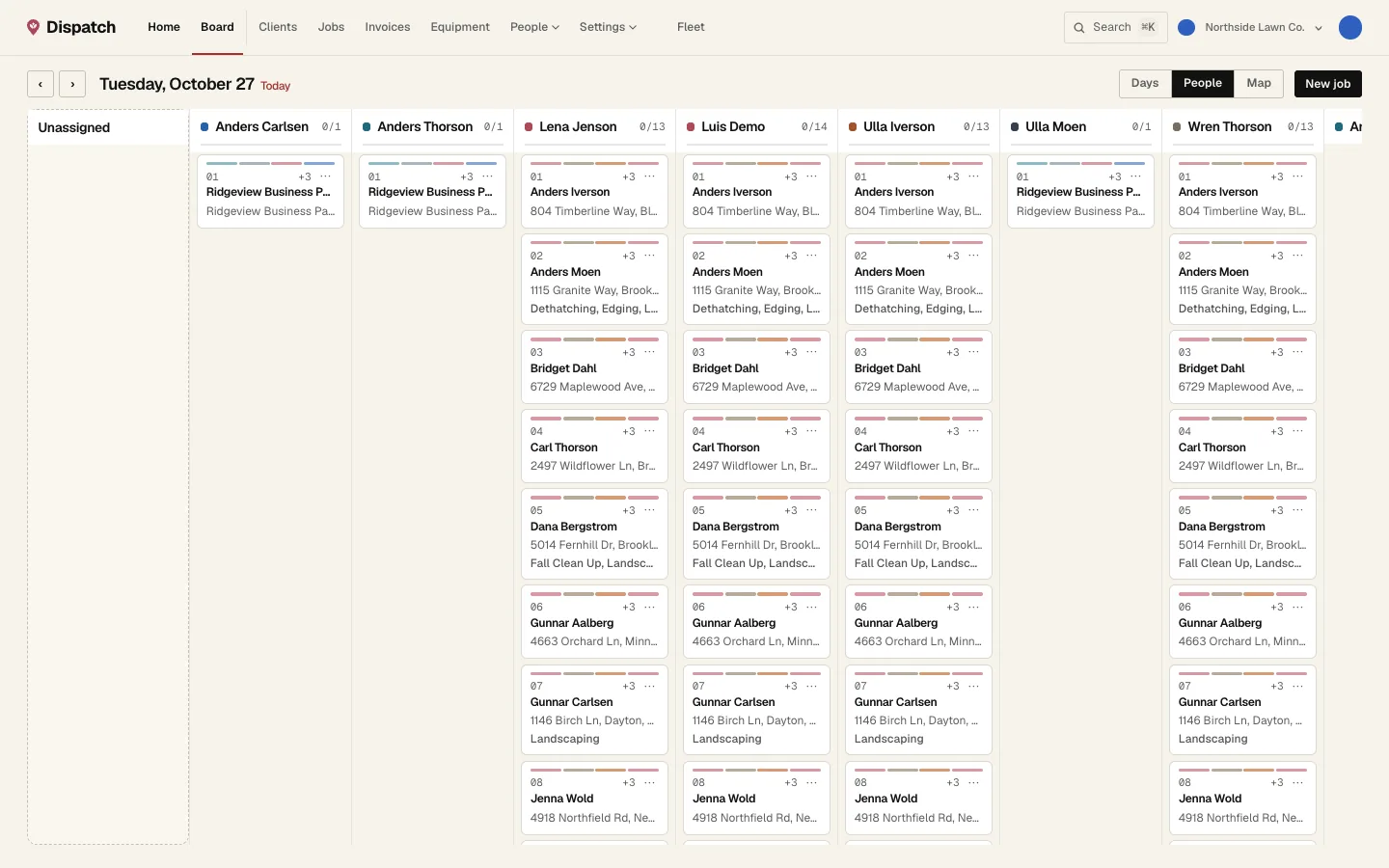
- 1 Click People here. Use the arrows next to the date to change the day.
- 2 Unassigned has stops nobody is on yet. Drag them onto a person.
- 3 Each column is one person's run, in order. Drag cards up and down to reorder. Drag to another column to give it to someone else.
- 4 ⋯ on a card opens the quick menu (below).
- New job at the top right books a quick one-off for this day.
The ⋯ menu on a card
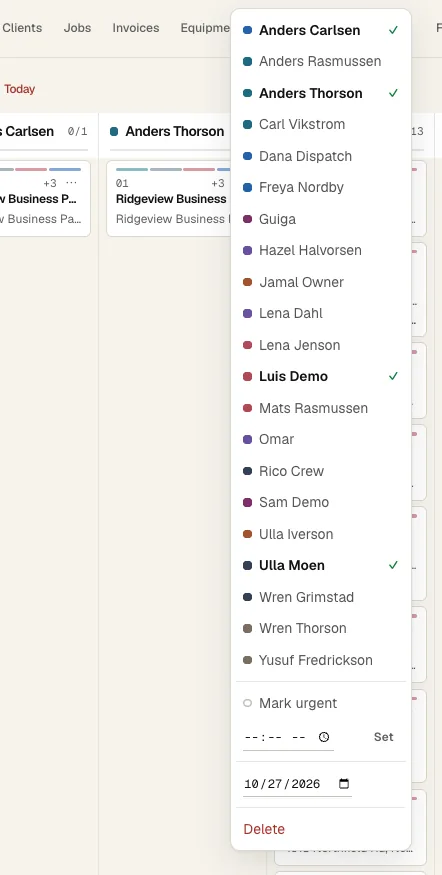
- 1 Click names to add or take people off the stop. A check means they're on it.
- 2 Mark urgent puts an Urgent tag on it for the crew.
- 3 Set a time they need to be there and click Set.
- 4 Change the date to move it. Clear the date to send it to the backlog.
- 5 Delete asks: just this stop, or the whole job from today on. Finished work never gets deleted. You can Undo right after.
Open a stop
Click the client's name on any card.
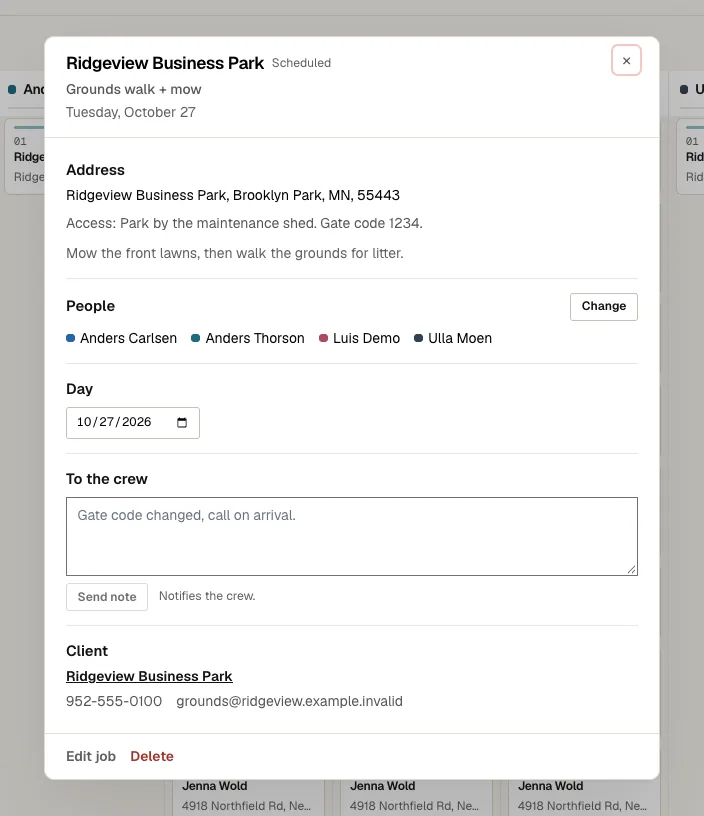
- 1 The address, access notes and the job's notes.
- 2 Who's on it. Change adds or removes people.
- 3 The day. Change it to move the stop. Clear it to send the stop to the backlog.
- 4 To the crew: type a note and click Send note. Everyone on the stop gets a notification.
- 5 The client, with their phone and email. Click the name for their page.
- 6 Edit job changes the job itself (all its stops). Delete next to it removes this stop or the whole job.
Some parts only show when there's something in them. Services lists what the stop is for, with prices (the crew never sees prices). The times show once the crew has been there. Photos and videos shows what the crew took.
When the crew reports an issue, it shows on the stop under From the crew. Once you've dealt with it, click Sorted. The crew member gets a notification.
Map view
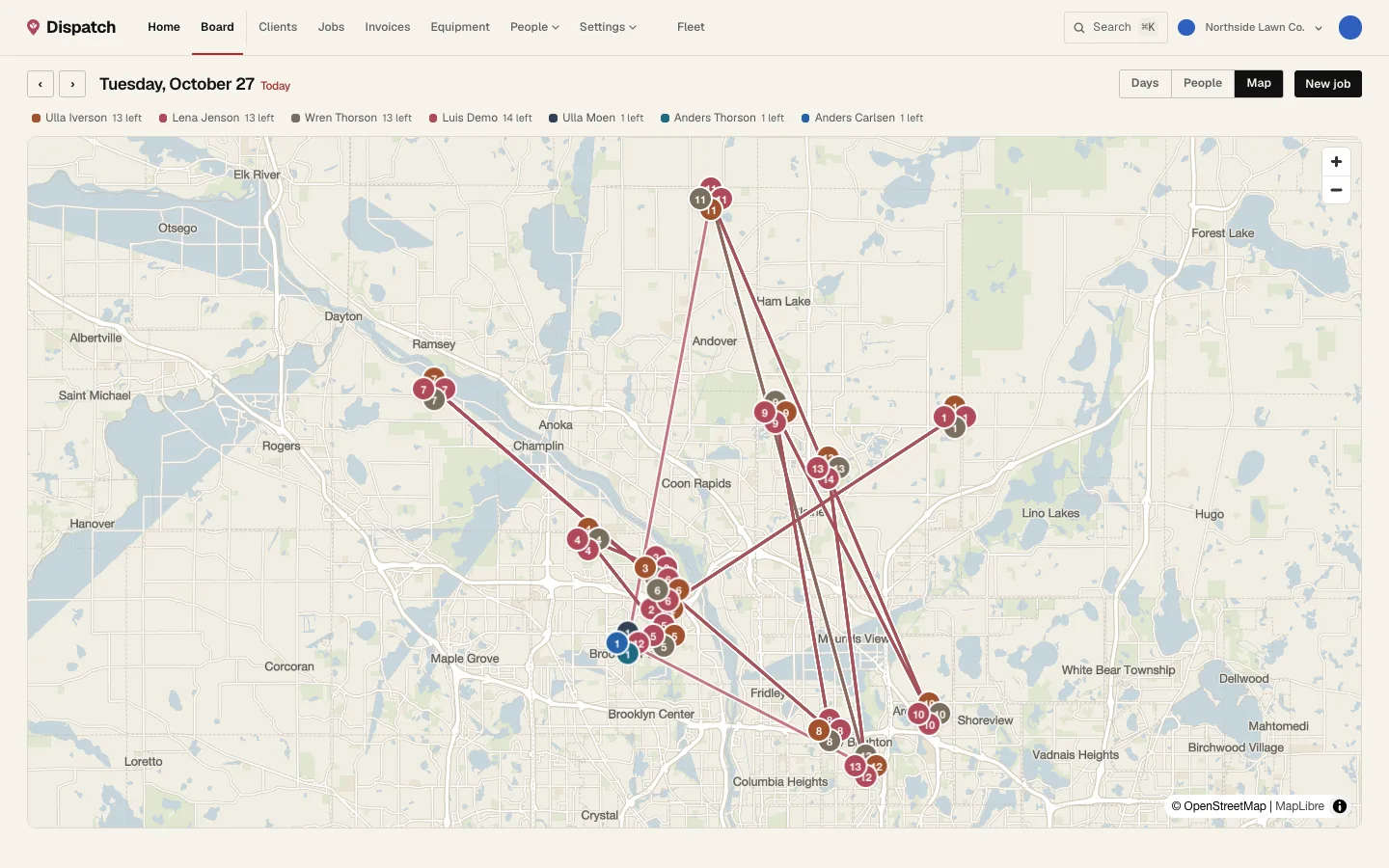
- 1 Click Map to see one day's routes.
- 2 Each chip is a person. Hover to highlight their route, click to zoom to it. Drag a pin onto a person's chip to give them that stop.