Work a stop
Directions, notes, photos, and marking the stop done.
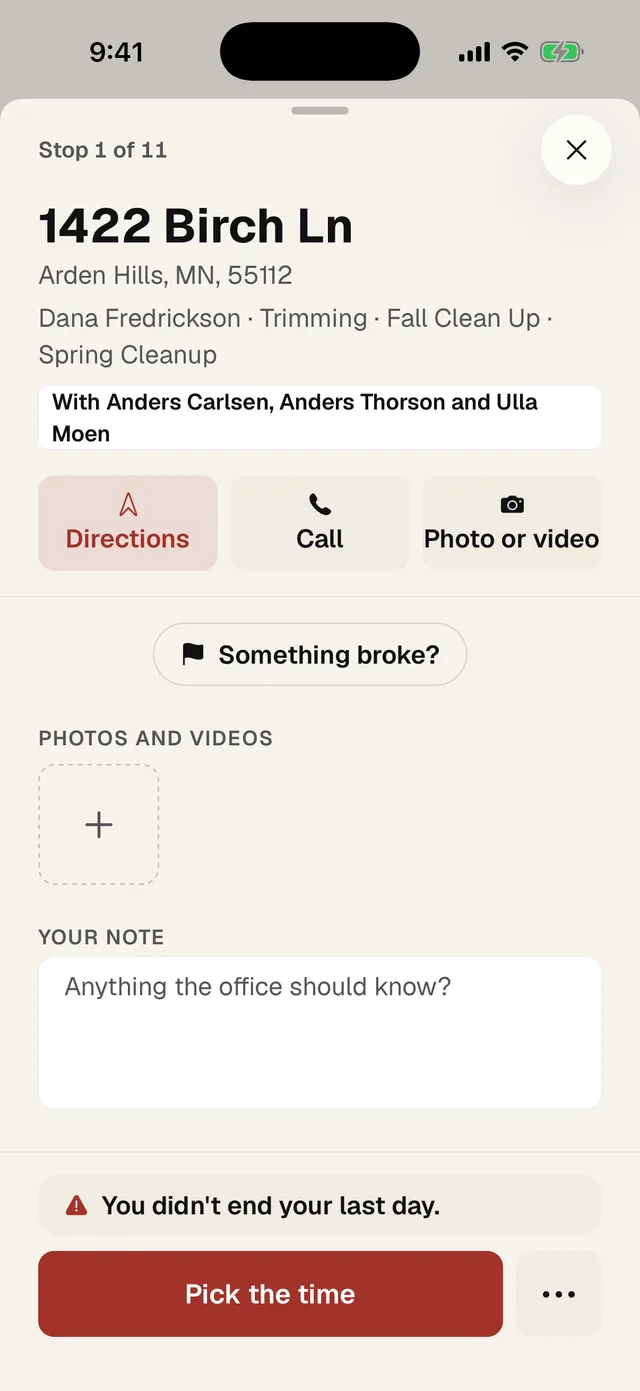
- 1 Directions opens your maps app with the address. The first time it asks which app to use.
- 2 Call rings the client. It only shows if the office has their number.
- 3 Photo or video opens the camera for proof of the work.
- 4 Something's broken flags a mower, truck or tool for the office.
- 5 Your photos and videos for this stop. Tap + to add more, or tap one to see it.
- 6 Your note goes to the office. Type it and tap Save note.
- 7 The big button at the bottom is what to do next. It says Start day, Start this stop or Complete stop.
- 8 ⋯ has the rest: Something's wrong, Customer request, Move the pin.
Scroll down on a stop for From the office (today's note), Gate (codes and access), Job notes, and Bring (the tools for this stop). Read these before you get out of the truck.
Mark a stop done
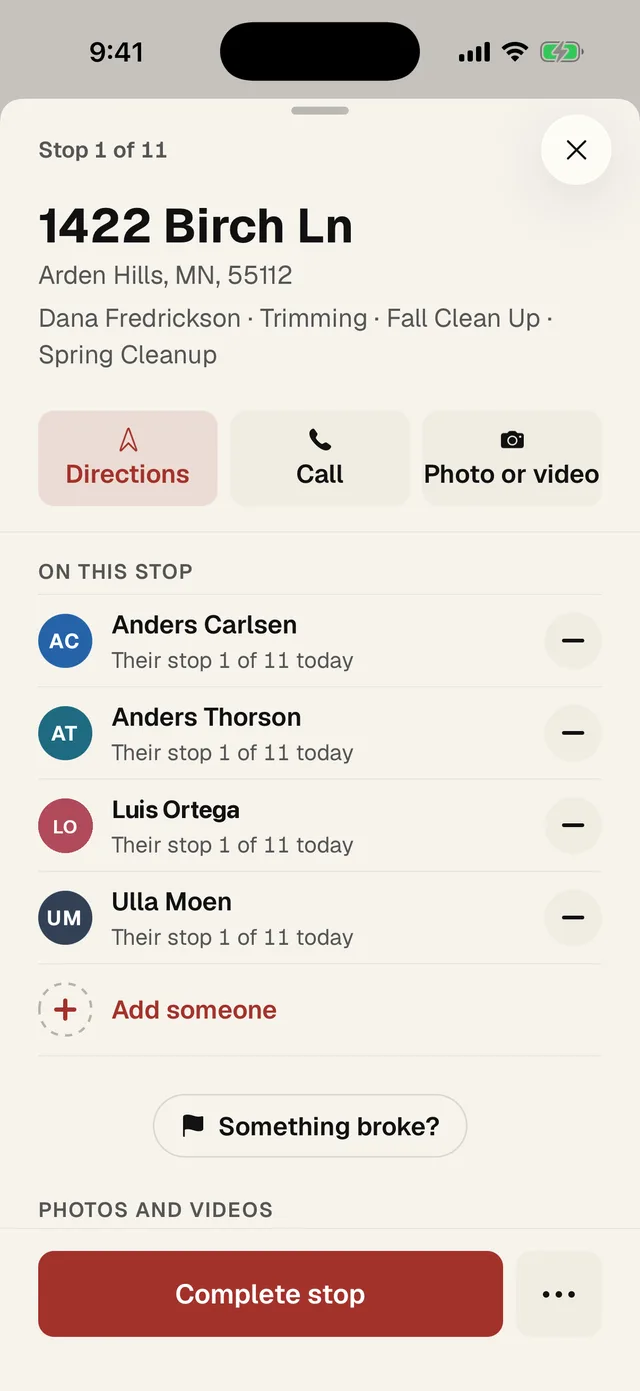
- Tap Start this stop when you start. The timer runs.
- Take your photo or video if the stop needs one. If it does, the photo strip says after shot needed and you can't complete until you add one.
- 1 Tap Complete stop. You go back to Home and the next stop is up.
- Tapped it by mistake? Tap Undo on the stop.
Photos and videos
- Tap Photo or video, then Take a photo or video or Choose from library.
- Switch to video in the camera with Start recording. Videos can be up to 3 minutes.
- Photos are stamped with where and when you took them.
- They upload on their own, even if you lose signal. Keep working.
- Tap a photo or video to see it full size. Under it is who added it and when.
- To delete one of yours, tap it, then Delete photo.