Start and end your day
What Home shows you, starting the day, and ending it when you're done.
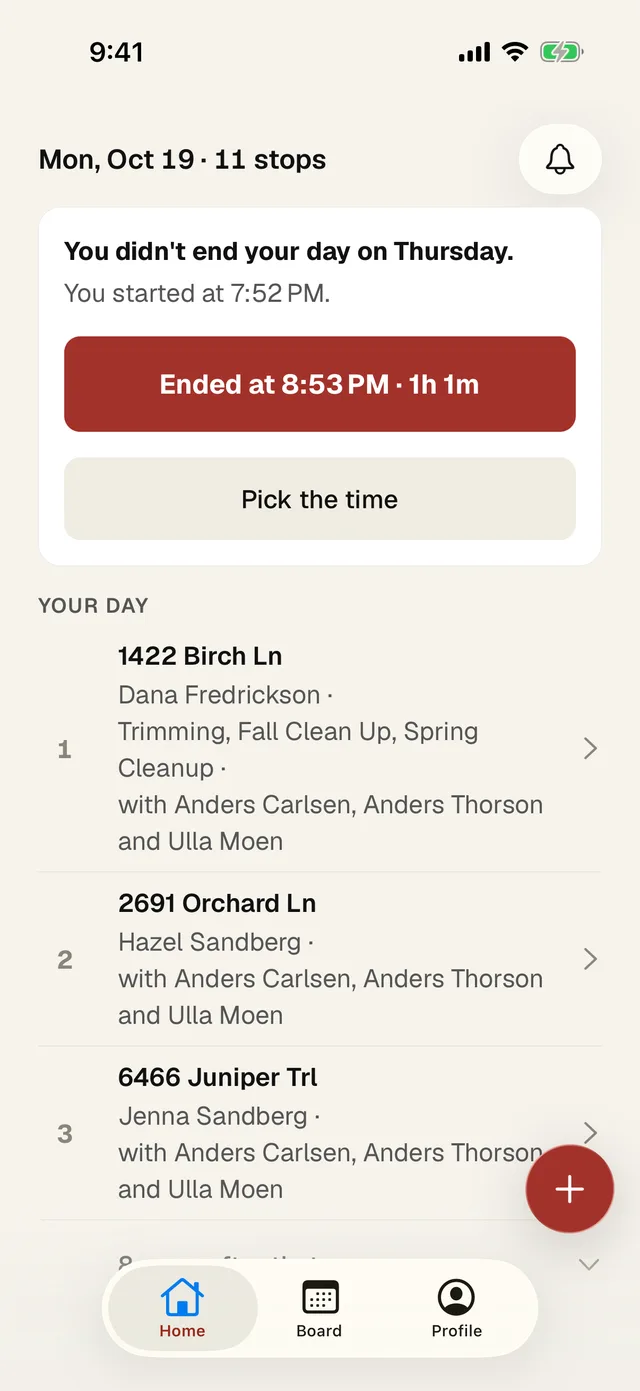
- 1 The top shows the date and how many stops you have. The bell opens messages from the office.
- 2 The card at the top changes through the day. In the morning it shows what to bring and a big Start day button. In this picture it is asking about a day that was never ended (more on that below).
- 3 Your day is your stops, in the order the office set. Stop 1 is first.
- 4 Tap any stop to open it.
- 5 The + button has equipment and End day.
Start the day
- Tap Start day when you start work.
- The first time, the app explains location and your phone asks for permission. You can say no. Everything still works, you'll just start each stop yourself.
- Once the day is running, the card shows your next stop with Directions and Open.
End the day
- When every stop is done, tap End day on the card. You can also tap + then End day.
- Forgot to tap it when you left? Tap I finished earlier and pick the real time.
If you forgot to end a day
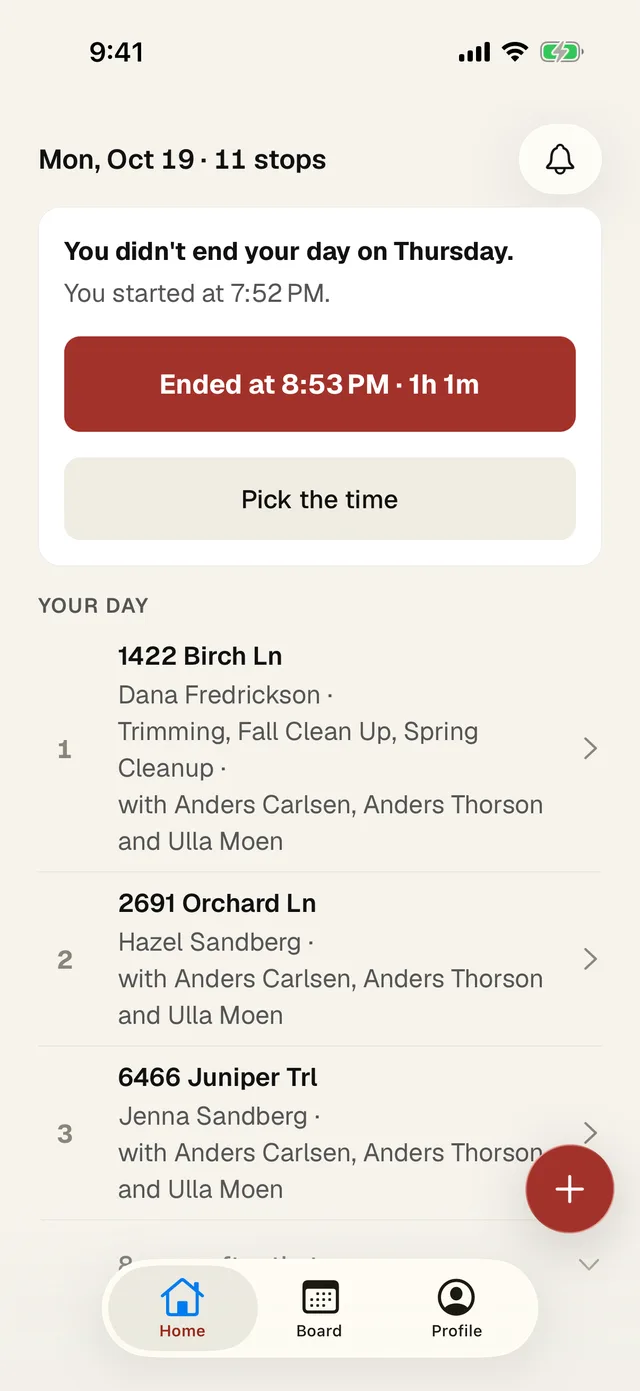
If you didn't end yesterday, the app asks before you can start today.
- 1 If the time it guesses is right, tap it. It's the time of your last stop.
- 2 If not, tap Pick the time and set when you really finished.