Run the day from your phone
Your Home screen, booking work, and moving stops from the truck.
Owners and dispatchers use the same app as the crew. You get extra buttons. Invoicing, clients and prices stay on the website.
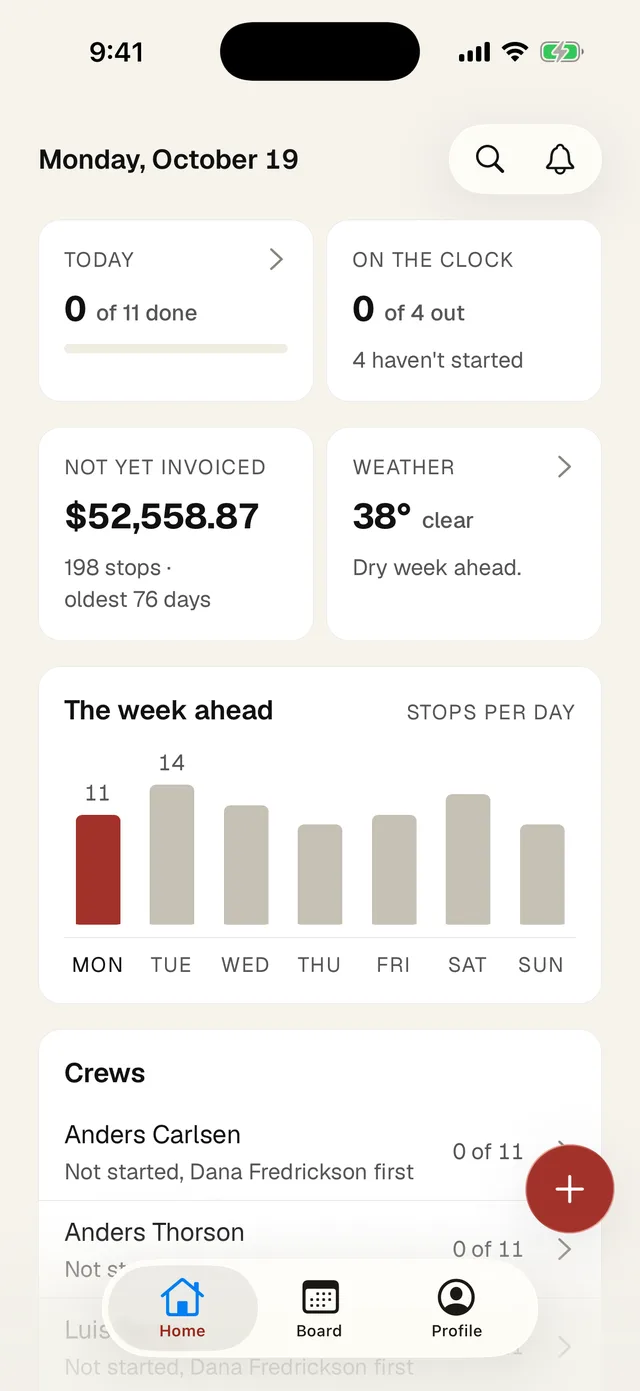
- 1 Search past visits. The bell next to it has messages from the office.
- 2 Today: stops done, issues, unassigned. Tap for the list.
- 3 On the clock: who's started.
- 4 Not yet invoiced (owners only).
- 5 Weather for days with stops.
- 6 The week ahead. Tap a day to open it.
- 7 Crews: each person's progress. Tap for their run.
- 8 +: New job, equipment.
If you have your own stops today, Home shows your run like a crew member's, with the office buttons added.
Book a job
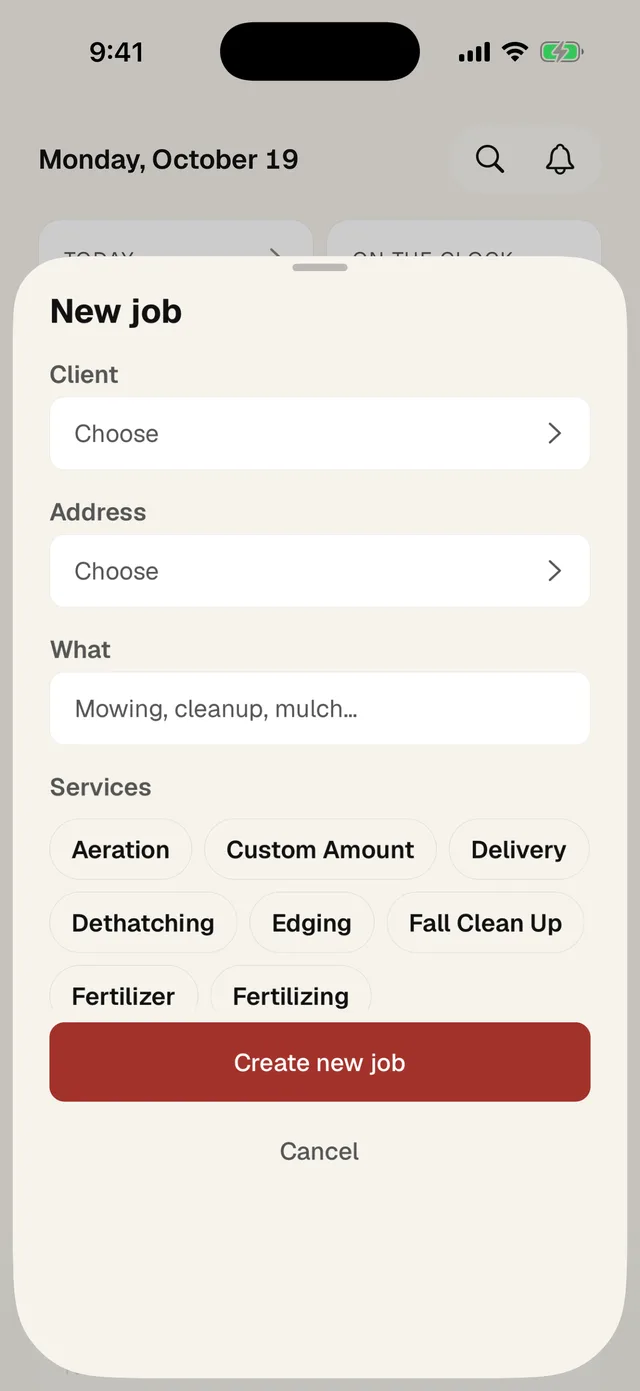
- Tap +, then New job.
- 1 Pick the client.
- 2 Pick the address.
- 3 Say what the work is.
- 4 Tap services. Scroll down for the day, time and people.
- 5 Tap Create new job.
Move work around
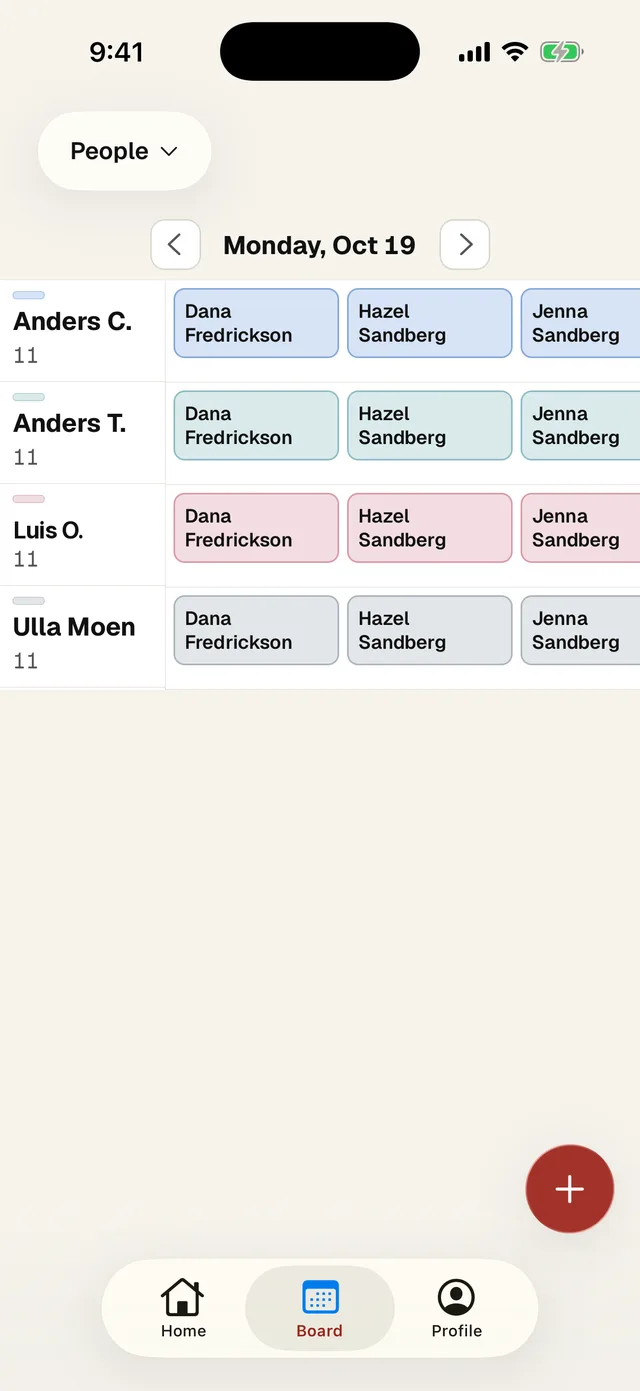
- 1 On the Board tab, tap the view menu and pick People.
- 2 Someone out sick? Tap their name to Hand off this day.
- 3 Drag a card to another person to give it to them.
- 4 Change the day.
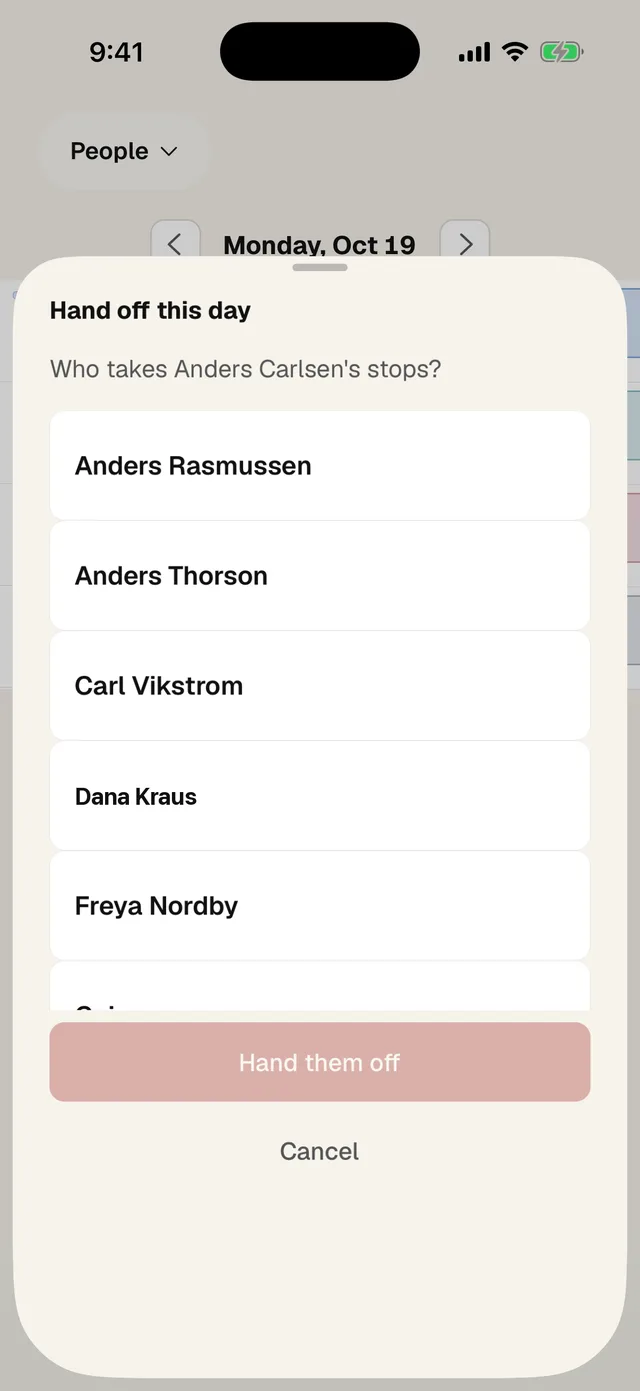
- 1 Pick who takes the stops.
- 2 Tap Hand them off.
Change one stop
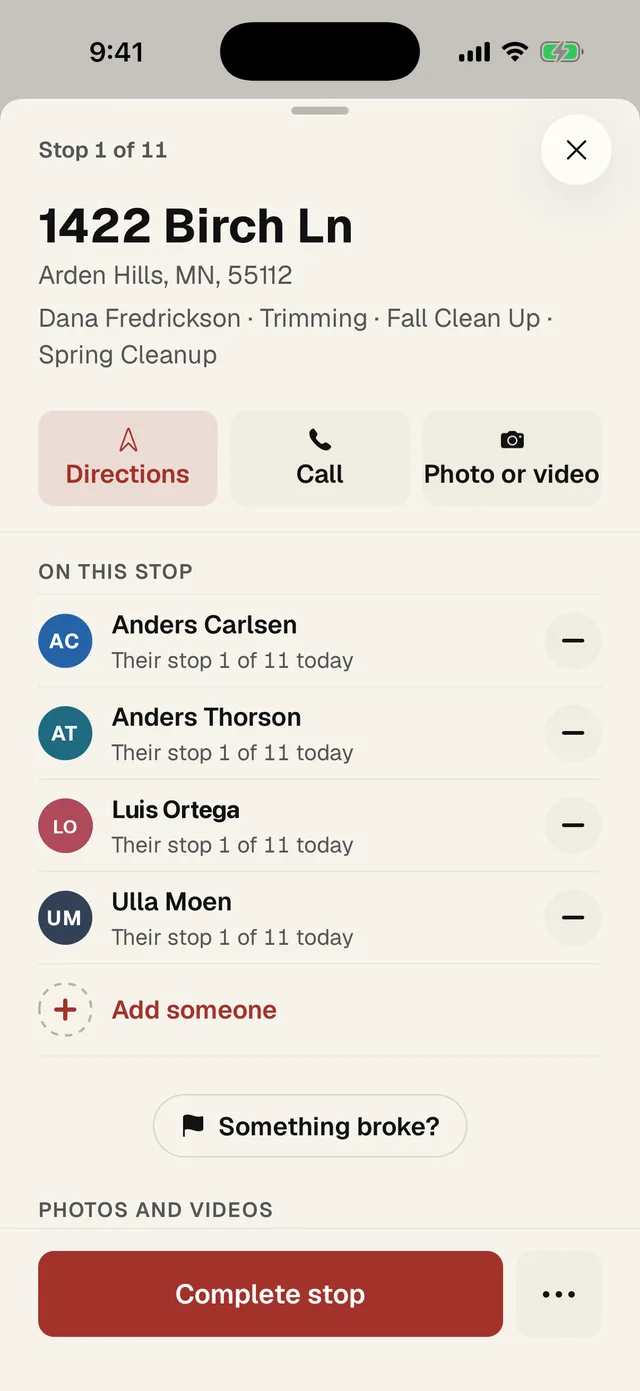
- 1 On this stop: who's on it and where it falls in their day.
- 2 Take someone off.
- 3 Add someone.
- 4 Doing it yourself? Complete stop.
- 5 ⋯ for everything else.
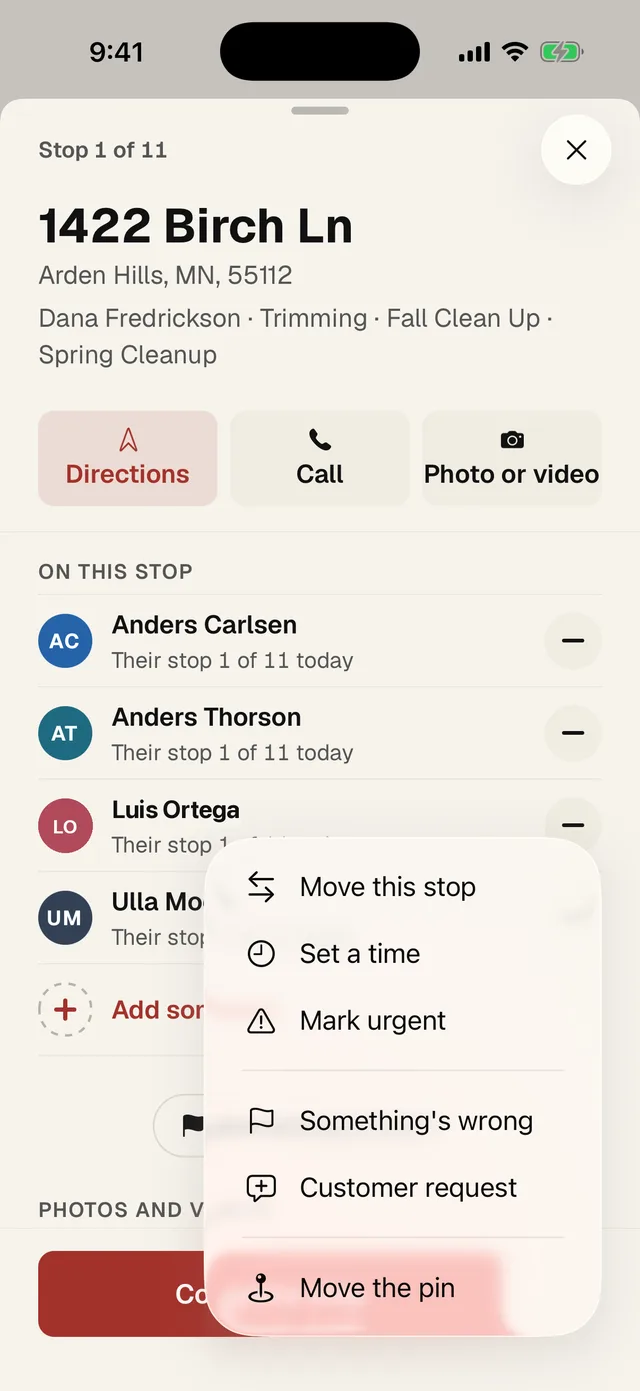
- 1 Move this stop to another person or day.
- 2 Set a time they need to be there.
- 3 Mark urgent.
- 4 Something's wrong: skip or report an issue.
- 5 Customer request.
- 6 Move the pin.
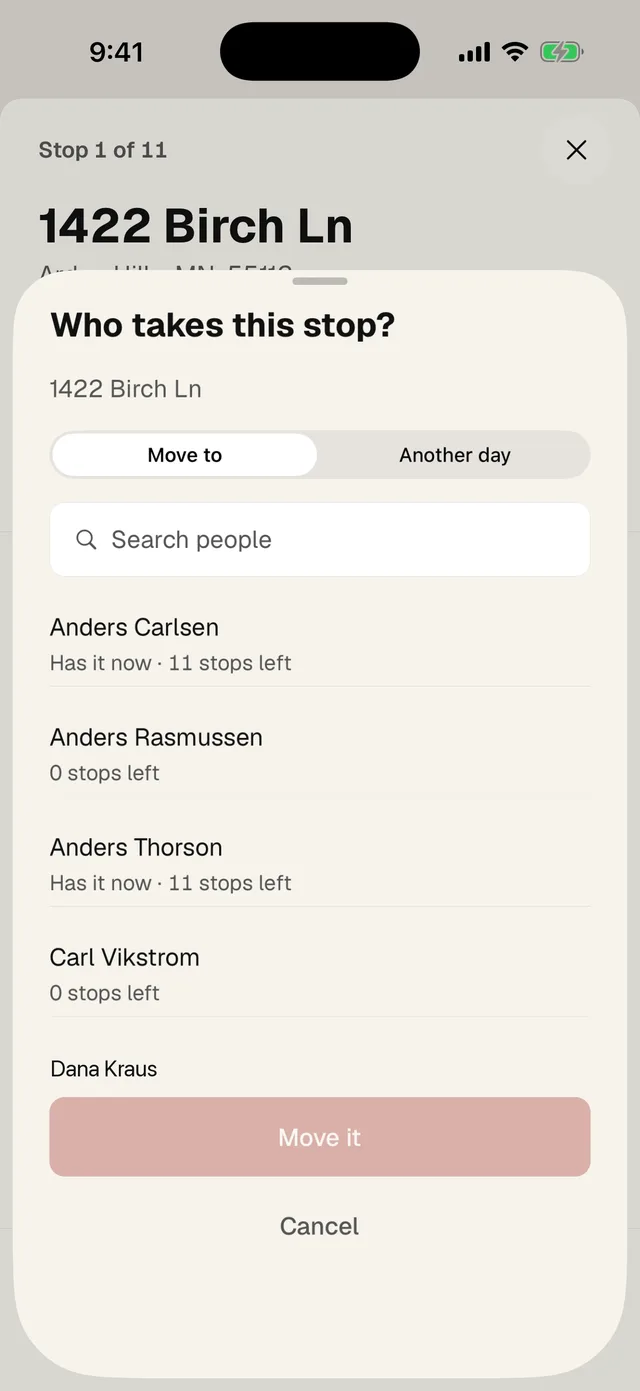
- 1 Move to a person, or Another day.
- 2 Pick who. It shows how many stops they have left.
- 3 Tap Move it.
When a stop has an issue, ⋯ also has Sorted. Tap it once you've handled it and the crew member is told.
Tools and files on a stop
- Bring lists the tools for the stop from its services. Add a tool adds one for this job only. Those show tinted, and the crew sees them on their card as Also bring.
- For this job holds files everyone on the job can see. Add a file takes a photo or video, or picks one from your library.
Look back at a past visit
- On Home, tap Look back at the top.
- Search by client, address or crew.
- Tap a visit to see the day, who went, how long they were on site, what the crew said and their photos.
Today on the map
On the Board, pick Map from the view menu. Each person's stops show in their color with their route. Tap a name to see only their run, numbered in order, with how many they have left. It shows the plan for the day, not where anyone is right now.
Message the crew from your phone
- Tap the bell on Home.
- Tap New announcement. On an iPhone it's the pencil button in the corner.
- Type the message. Leave the names alone to send it to everyone, or tap names to pick people.
- Tap Send.
To take one back, open its menu (or swipe it on an iPhone) and tap Remove announcement. It comes off everyone's phone.